First, find who bills Apple TV
To cancel Apple TV, start by checking where the subscription is billed. If it is billed through Apple, you can usually cancel from iPhone Settings under your Apple Account subscriptions. If it was started on the web, Apple documents a cancellation route at tv.apple.com. If it is billed through Amazon or Google Play, Apple says you need to cancel through that provider.
That billing-source check prevents the most common mistake: looking in the Apple TV app when the charge is controlled somewhere else.
Cancel through Apple if it appears in Subscriptions
On iPhone, open Settings, tap your name, then tap Subscriptions. If Apple TV is listed, open it and choose the cancellation option if available.
If it is part of Apple One, be careful. Canceling one service in a bundle may work differently from canceling a standalone plan.
Cancel on the web if that is where you manage it
Apple's web instructions for Apple TV are to sign in at tv.apple.com, open account settings, find the Subscriptions area, choose Manage, and cancel the subscription.
If that route does not show the plan, go back to the billing-source question. Look for Apple, Amazon, Google Play, a carrier, or another bundle.
Track streaming plans after the cleanup
Apple TV is one streaming line item. Many people also have Netflix, Disney+, Spotify, YouTube Premium, Prime, sports services, or rotating trials.
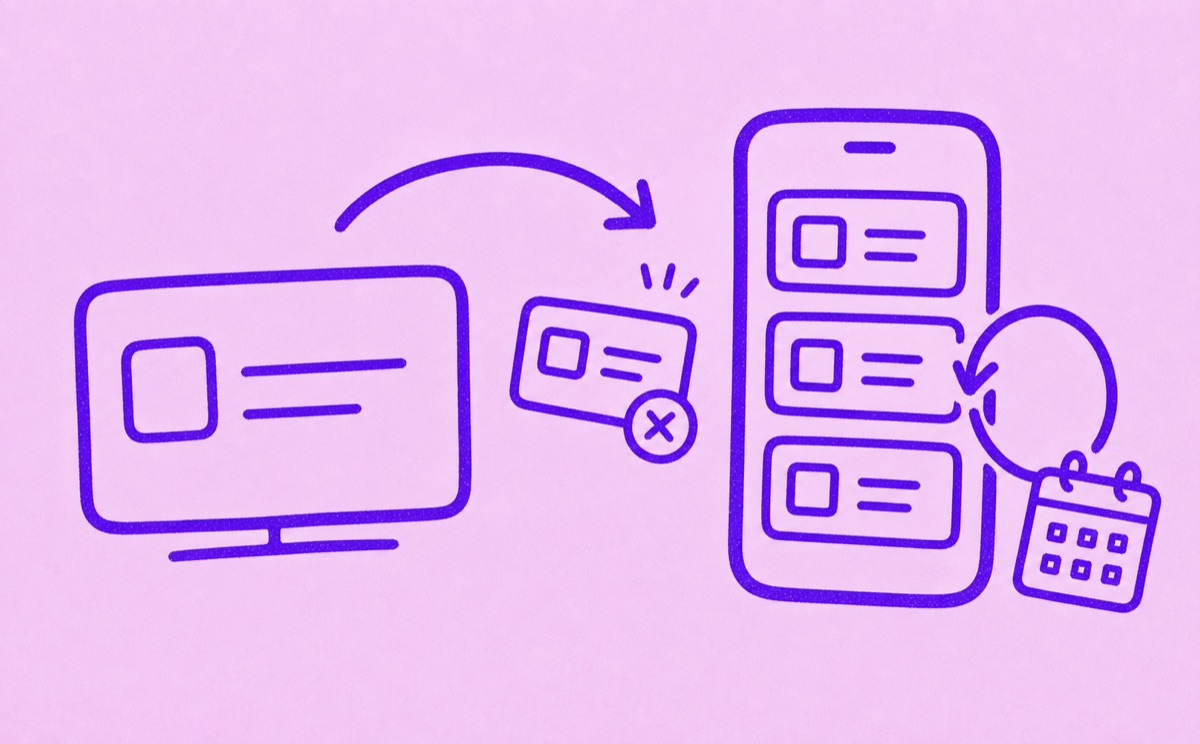
Orbit helps iPhone users keep those plans in one subscription-focused list, with renewal dates and reminders. That makes it easier to rotate streaming services intentionally instead of discovering overlapping charges after the fact.
For a full streaming cleanup, read How to track streaming subscriptions.